
 By GS Plugins
WordPress Book Plugin for Displaying Books in Grid, Flip, Slider, Popup Layout and more Plugin
The WordPress book review plugin allows for the display of books in various layouts such as Grid, Flip, Slider, Popup, and More.
Best Responsive Book Showcase plugin for WordPress to display Book details like Cover, Author, Published On, Publisher, Reviews, Rating, Translator, ISBN, ASIN, Total Pages / Length, Country, Language, Book Dimensions, File Size (if e-book), Author Biography & many more. Display anywhere at your site using shortcodes like [gs_book_showcase theme=”gs_book_theme1″] & widgets. GS Bookshowcase plugin packed with tons of controlling options & different themes to showcase books elegantly with eye-catching effects.
GS Books Showcase plugin is simple, flexible & powerful.
GS Books Showcase by GS Plugins
Plugin Features
- Responsive Book Showcase plugin
- Different Column options
- Works with any standard WordPress Theme.
- Add Unlimited Books
- Developer friendly & easy to customize.
- All modern browsers supported.
- W3C valid markup
- Display anywhere at your site using shortcode like [gs_book_showcase theme=”gs_book_theme1″] & widgets
- Books details with user reviews, rating, gallery
- Easy to setup
- It’s easy to use interface allows you to manage, edit, create and delete Team Members with no new knowledge.
Pro Features
- 11 different themes
- Theme 01: Hover
- Theme 02: Grid
- Theme 03: Left Sqr
- Theme 04: Right Sqr
- Theme 06: Slider
- Theme 07: Slider & Hover
- Theme 08: Popup
- Theme 09: Filter
- Theme 10: Greyscale
- Theme 11: To Single
- Theme 12: Filter Only Selected Categories
- Single Book Template included
- Archive Book Template included
- GS Book Showcase Widget available
- GS Book Showcase Shortcode generator available at page / post
- Display Books by Group / category wise
- Limit number of Books to display.
- Limit number of characters for description.
- Custom CSS – Add Custom CSS to GS Book Showcase
- Priority Email Support.
- Free Installation ( If needed ).
- Free updates for one year.
- Auto update notification.
- Auto update from dashboard.
- Well documentation and support.
- And many more..
- View live Demos »
- Upgrade to PRO »
Available fields to add info (Lite)
- Book Name
- Book Details
- Author
- Published On
- Publisher
- Download URL (for e-book)
Available fields to add info (Pro)
- Translator
- ISBN
- ASIN
- Total Pages / Length
- Country
- Language
- Book Dimensions
- File Size (if e-book)
- Author Biography
- Review
- Readers Rating
- Author Image
- Books Group / Category
- Book Cover (Featured Image)
- Book Cover / Gallery (Multiple book pages)
Books Showcase Settings (Pro)
- Columns ( 2 Columns, 3 Columns, 4 Columns )
- Style & Theme ( Hover, Grid, Left Sqr, Right Sqr, Slider, Slider & Hover, Popup, Filter, Greyscale, To Single, Filter Only Selected Categories )
- On / off controls for – Book Name, Book Details, Book Category, Book Author, Book Publish Date, Book Publisher, Book Translator, Book ISBN, Book ASIN, Book Pages, Book Country, Book Language, Book Dimension, Book File Size, Book Author Image, Book Author Details, Book Review, Book Rating, Book URL
- Link Target ( New Tab, Same Window )
- Set the limit to max number of characters in Book summary details
- Style Book Name by – Font Size, Weight, Style, Color
- Style Book Label by – Font Size, Color
- Style Popup Btn, Nav & Close Button by – BG Color
- Set Filter Category Position to – Left, Center or Right
- Book Showcase Custom CSS (write your own custom css )
GS Books Showcase’s shortcode usage
Basic Usage –
[gs_book_showcase theme="gs_book_theme1"] GS Books Showcase’s Shortcode attributes Usage
[gs_book_showcase num="10" theme="gs_book_theme1" cols="4" group="cookbook,fiction" cats_name="none" desc_limit="100" order="DESC" orderby="date"] Shortcode PHP Usage
<?php echo do_shortcode( '[gs_book_showcase theme="gs_book_theme1"]' ); ?> Confused?
🔥 You may like other plugins from GS Plugins
Testimonial Slider – Testimonials slider displays rotating customer endorsements and recommendations, helping to build trust and credibility for a business or product.
Logo Slider – Logo slider displays rotating logos of partners, clients, or sponsors, showcasing a business’s relationships and endorsements.
Portfolio – Filterable Portfolio plugin for WordPress allows you to easily display and showcase your projects, highlighting your skills and abilities.
Team Members – Build a Stunning Team Page or Section and Show off Your Team’s Talents!
Projects – Projects showcase displays detailed information including client reviews, ratings, galleries, and videos for a business’s work.
Coaches – Coaches plugin displays coaches’ experience, skills, reviews, ratings, and certifications, helping users find the right coach for their needs.
Posts Grid – WordPress Posts Grid plugin displays the latest posts in an elegant grid format, allowing for easy navigation and quick access to new content on a website.
Posts Widget – WordPress Posts Widget plugin displays the latest posts in an elegant format on the sidebar or any widget area, allowing for easy navigation and quick access to new content on a website.
🎯 WooCommerce Plugins
WooCommerce Products Slider – WooCommerce Product Slider plugin displays products in a visually pleasing, sliding manner, making it easy for customers to browse and find the products they want on an online store.
WooCommerce Variation Swatches – WooCommerce Variation Swatches plugin replaces the default dropdown fields for variable products with visually appealing swatches, making it easier for customers to select product options and improve the overall shopping experience.
WooCommerce Brands – WooCommerce Brands taxonomy plugin allows for easy cataloging of products by adding a brand taxonomy, making it simple to organize and filter products on an online store.
📣 Social Plugins
Dribbble Portfolio – Dribbble Portfolio WP plugin enables you to display your Dribbble shots on your website in a portfolio layout, allowing you to showcase your design work to a wider audience.
Behance Portfolio – Behance Portfolio WordPress plugin allows you to display your Behance projects on your website in a visually appealing layout, making it easy for your audience to view and appreciate your work.
Pinterest Portfolio – Pinterest plugin for WordPress allows you to display your Pinterest pins on your website, giving your audience a chance to view and interact with your boards, and potentially drive more traffic to your Pinterest profile.
Instagram Portfolio – Instagram plugin for WordPress allows you to display your Instagram posts on your website, making it easy for visitors to view and interact with your content and also to increase engagement on your website.
Portfolio – Envato – Envato Portfolio Plugin allows you to display your Themeforest and Codecanyon items on your website, showcasing your digital products and making them easily accessible for potential customers.
Youtube Gallery – YouTube Gallery plugin allows you to display videos from a YouTube channel or playlist on your website, creating a visually appealing gallery and making it easy for visitors to access and watch your videos.
Twitter Feeds – Twitter Feeds plugin displays Twitter feeds, hashtags, user cards, and collections on a website, making it easy for visitors to view and interact with your Twitter content.
🏆 Branding Plugin
Custom Login – GS Custom Login allows you to customize the WordPress login screen, providing an easy way to create a unique and visually appealing login experience for your website users.
PowerUp – Enhance Your WordPress Experience with the Ultimate Security & Convenience Solution – Hide Admin Bar, Login & Logout Redirection, Disable Comments & Restrict WP-Admin Module.
Installation
Install GS Books Showcase plugin as a regular WordPress plugin. Here is different ways to install GS Books Showcase plugin :
Install by Search Plugin
- In your Admin, go to menu Plugins > Add New
- Search GS Bookshowcase
- Click to install
- Activate the plugin
- GS Bookshowcase post type will show below Posts / Pages
Install by Upload Plugin
- Download the latest version of GS Bookshowcase (.zip file)
- In your Admin, go to menu Plugins > Add New
- Select Upload Plugin
- Click on Choose File
- Select downloaded gs-bookshowcase-pro.zip & click on Install Now button
- Activate the plugin
- GS Bookshowcase post type will show below Posts / Pages
Install Plugin using FTP
- Upload gs-bookshowcase-pro folder inside the /wp-content/plugins/ directory
- Go to WordPress dashboard > Plugins > Activate the GS Bookshowcase plugin
GS Bookshowcase post type will show below Posts / Pages
Put [gs_book_showcase theme=”gs_book_theme1″] shortcode or select another theme, where you need to show the Books.
Screenshots
![GS Books Showcase output by <strong>Theme One – Hover</strong> after adding shortcode [gs_book_showcase theme="gs_book_theme1" cols="4" desc_limit="200"]](https://ps.w.org/gs-books-showcase/assets/screenshot-1.png?rev=1574602)
GS Books Showcase output by Theme One – Hover after adding shortcode [gs_book_showcase theme="gs_book_theme1" cols="4" desc_limit="200"]
![GS Book Showcase output by <strong>Theme Two – Grid</strong> after adding shortcode [gs_book_showcase theme="gs_book_theme2" cols="3" desc_limit="200"]](https://ps.w.org/gs-books-showcase/assets/screenshot-2.png?rev=1574602)
GS Book Showcase output by Theme Two – Grid after adding shortcode [gs_book_showcase theme="gs_book_theme2" cols="3" desc_limit="200"]
![GS Books Showcase output by <strong>Theme Three – Left Sqr</strong> after adding shortcode [gs_book_showcase theme="gs_book_theme3" cols="6" desc_limit="300"]](https://ps.w.org/gs-books-showcase/assets/screenshot-3.png?rev=1574602)
GS Books Showcase output by Theme Three – Left Sqr after adding shortcode [gs_book_showcase theme="gs_book_theme3" cols="6" desc_limit="300"]
![GS Books Showcase output by <strong>Theme Four – Right Sqr</strong> after adding shortcode [gs_book_showcase theme="gs_book_theme4" cols="6" desc_limit="300"]](https://ps.w.org/gs-books-showcase/assets/screenshot-4.png?rev=1574602)
GS Books Showcase output by Theme Four – Right Sqr after adding shortcode [gs_book_showcase theme="gs_book_theme4" cols="6" desc_limit="300"]
![GS Books Showcase output by <strong>Theme Seven – Slider</strong> after adding shortcode [gs_book_showcase theme="gs_book_theme7"]](https://ps.w.org/gs-books-showcase/assets/screenshot-5.png?rev=1574602)
GS Books Showcase output by Theme Seven – Slider after adding shortcode [gs_book_showcase theme="gs_book_theme7"]
![GS Books Showcase output by <strong>Theme Seven – Slider & Hover</strong> after adding shortcode [gs_book_showcase theme="gs_book_theme7_1" desc_limit="230"]](https://ps.w.org/gs-books-showcase/assets/screenshot-6.png?rev=1574602)
GS Books Showcase output by Theme Seven – Slider & Hover after adding shortcode [gs_book_showcase theme="gs_book_theme7_1" desc_limit="230"]
![GS Books Showcase output by <strong>Theme Eight – Popup</strong> after adding shortcode [gs_book_showcase theme="gs_book_theme8"]](https://ps.w.org/gs-books-showcase/assets/screenshot-7.png?rev=1574602)
GS Books Showcase output by Theme Eight – Popup after adding shortcode [gs_book_showcase theme="gs_book_theme8"]
![GS Books Showcase output by <strong>Theme Eleven – Single Book Page Instead Of Popup</strong> after adding shortcode [gs_book_showcase theme="gs_book_theme11"]](https://ps.w.org/gs-books-showcase/assets/screenshot-8.png?rev=1574602)
GS Books Showcase output by Theme Eleven – Single Book Page Instead Of Popup after adding shortcode [gs_book_showcase theme="gs_book_theme11"]
![GS Books Showcase output by <strong>Theme Nine – Filter</strong> after adding shortcode [gs_book_showcase theme="gs_book_theme9"] ** Single Category / Multiple Category & Filter only from Selected Category demo available.](https://ps.w.org/gs-books-showcase/assets/screenshot-9.png?rev=1574602)
GS Books Showcase output by Theme Nine – Filter after adding shortcode [gs_book_showcase theme="gs_book_theme9"] ** Single Category / Multiple Category & Filter only from Selected Category demo available.
![GS Books Showcase output by <strong>Theme Ten – Grayscale</strong> after adding shortcode [gs_book_showcase theme="gs_book_theme10"]](https://ps.w.org/gs-books-showcase/assets/screenshot-10.png?rev=1574602)
GS Books Showcase output by Theme Ten – Grayscale after adding shortcode [gs_book_showcase theme="gs_book_theme10"]
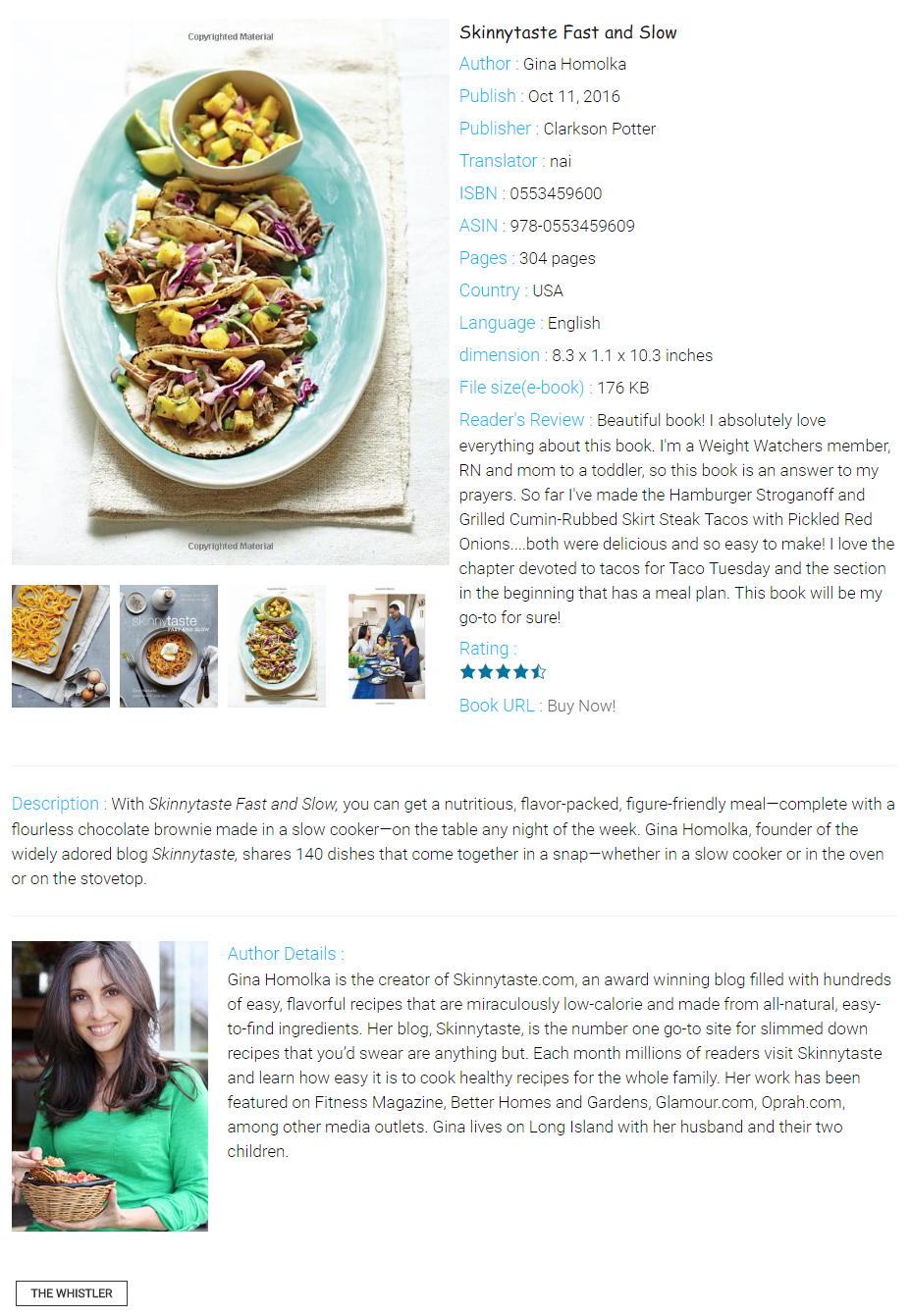
GS Books Showcase Single Template
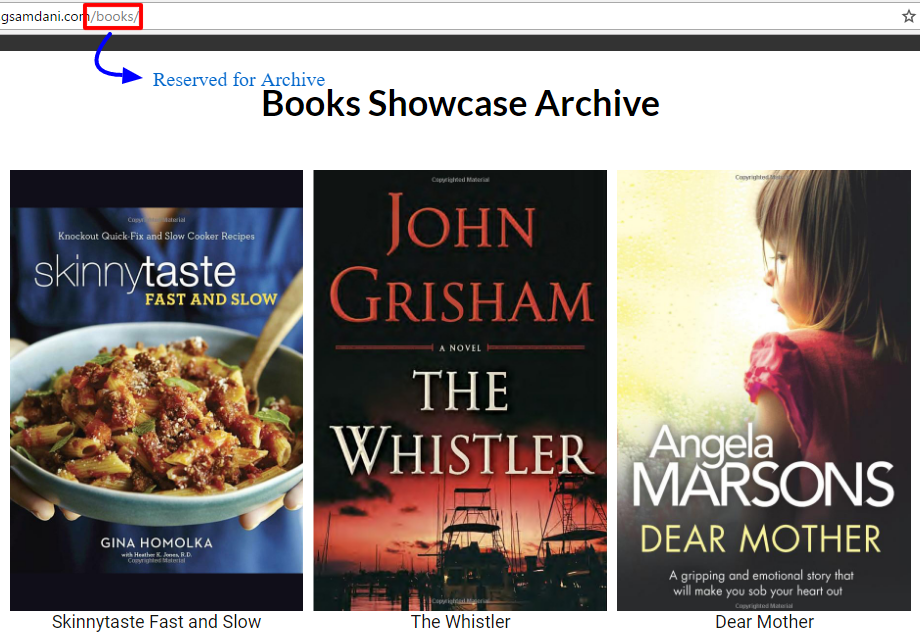
GS Books Showcase Archive
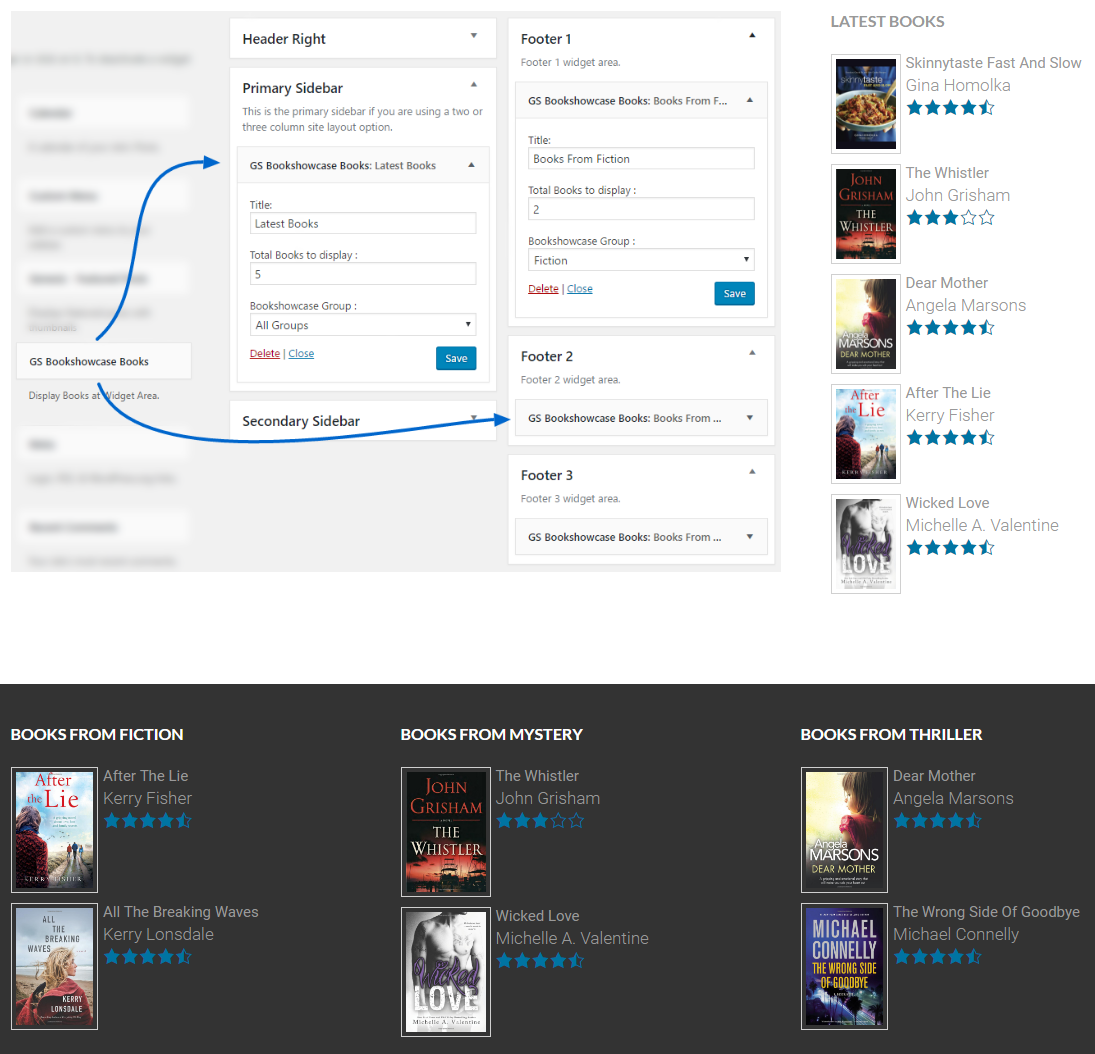
GS Books Showcase Widget
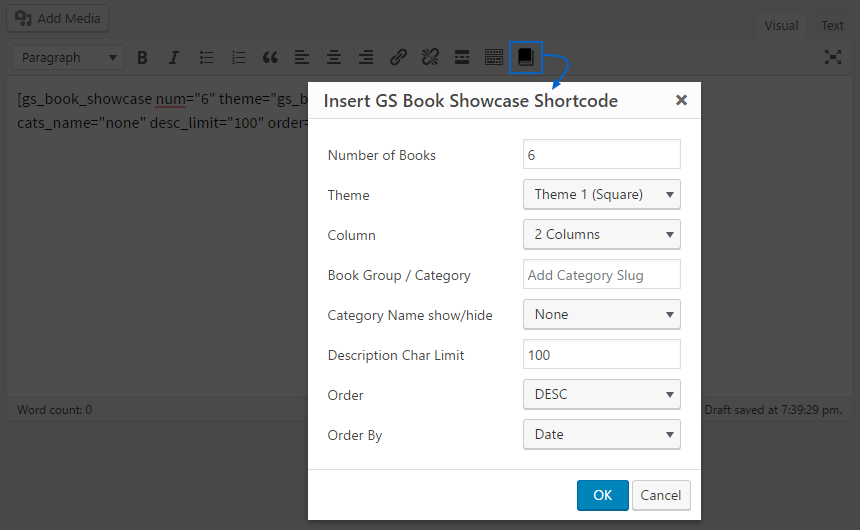
GS Books Showcase Shortcode Generator
FAQ
GS Book Showcase post type will show below Posts / Pages. To add new Book, go to GS Books Showcase > Add New Book, then add Title, Desc, Cover, Author, Published On, Publisher, Reviews, Rating, Translator, ISBN, ASIN, Total Pages / Length, Country, Language, Book Dimensions, File Size (if e-book), Author Biography. Now you are ready to Publish.
Recommended image size 600px X 900px for perfect view on various devices.
WordPress has a great function, do_shortcode(), that will allow you to use shortcodes inside your theme files. For example, to output Books Showcase in a Theme file, you would do this:
<?php echo do_shortcode('[gs_book_showcase theme="gs_book_theme1"]'); ?> Install GS Books Showcase plugin as a regular WordPress plugin. Here is different ways to install GS Books Showcase plugin :
- Visual Installation & Usage Guide »
- Put [gs_book_showcase theme=”gs_book_theme1″] shortcode or select another theme, where you need to show the Books.
There is no limitation to add a number of books, so you can add as many books as you want.
First install the GS Books Showcase plugin in your WordPress website. Then add the shortcode [gs_book_showcase theme=”gs_book_theme1″] where you wish to display books.
600px X 900px is the recommended image size for Books Showcase plugin. Other dimensions may not give you the proper outlook of your book design.
There are 11 types of theme / design options available at GS Books Showcase plugin. The themes are :
– Theme 01: Hover
– Theme 02: Grid
– Theme 03: Left Sqr
– Theme 04: Right Sqr
– Theme 05: Slider
– Theme 06: Slider & Hover
– Theme 07: Popup
– Theme 08: Filter
– Theme 09: Grayscale
– Theme 10: To Single
– Theme 11: Filter Only Selected Categories
Yes, There is a great rating system so that people can rate the books displayed on your site. Rating system also shows the number of ratings and its average.
Changelog
Version 1.3.1 [30th Jan 2023]
- [Fixed]: Sanitize Issue.
- [Updated]: Free, Pro Plugins Pages & Help Page.
- [Removed]: All Admin Notices From the Books Showcase Post Type.
version 1.3.0 [19th Sep 2022]
- [Added]: Comments Support for the Single Book Page.
- [Updated]: Contact & Donation Links.
version 1.2.11 [23rd May 2021]
- [Fixed]: PHP 7.3 Compatibility.
- [Fixed]: Deprecated Function Warning.
version 1.2.10 [19th Dec 2020]
- [Updated]: AppSero Client.
- [Removed]: Affiliate Admin Notice.
- [Updated]: With WordPress version 5.6
version 1.2.9 [14th Sep 2020]
- [Updated]: link with UTM.
version 1.2.8 [13th Sep 20]
- [Added]: Admin notice
version 1.2.7 [13th Aug 20]
- [Updated]: With WordPress 5.5
version 1.2.6 [9th July 20]
- [Added]: Appsero client.
version 1.2.5 [18th Jun 20]
- [Fixed]: Replace with Bootstrap Grid CSS.
- [Removed]: Admin notice.
version 1.2.4 [21th Apr 20]
- [Added]: Bootstrap 4 css and admin notice .
version 1.2.3 [29th Dec 19]
- [Fixed]: Conflict with OceanWP’s Elementor Widgets.
version 1.2.2 [25th Nov 19]
- [Fixed]: Domain name with www & fixed all urls.
- [Updated]: With WordPress latest version.
Version 1.2.1 [22nd Oct 19]
- [Fixed]: Domain name changed & fixed all urls.
- [Fixed]: Admin CSS.
- [Added]: New Contributors.
- [Added]: Review system.
version 1.2
- Wrong shortcode updated at Description & Docs, corrected to [gs_book_showcase theme=”gs_book_theme1″]
version 1.0.1
- Initial release