

12 Step Meeting List Plugin
This plugin helps twelve step recovery programs list their meetings. It standardizes addresses, and displays results in a searchable list and map.
This plugin helps twelve step recovery programs list their meetings. It standardizes addresses, and displays results in a searchable list and map.
It’s also the easiest way for Alcoholics Anonymous service entities to get listed in the Meeting Guide mobile app for iOS and Android devices.
This plugin was originally designed to maintain a list of A.A. meetings in Santa Clara County, CA. It is now used to provide meeting information for A.A. and other 12-step recovery groups around the world.
Notes
- The Meeting Notes field is for any non-standardized meeting info, such as Basement, or Building C
- Location should be a simple place-name, eg Queen of the Valley Hospital
- Address should only be the address; no “Upstairs” or “Building C” or “Near 2nd Ave”
- You can fill in a very basic address and then when you tab away from that field you will see it try to standardize the address for you. If you write “1000 trancas, napa” it will replace it with “1000 Trancas St, Napa, CA 94558, USA.”
Installation
Just install the plugin, add a mapping API key from Mapbox (or Google), and start entering your meetings. That is all it takes to get started!
Screenshots
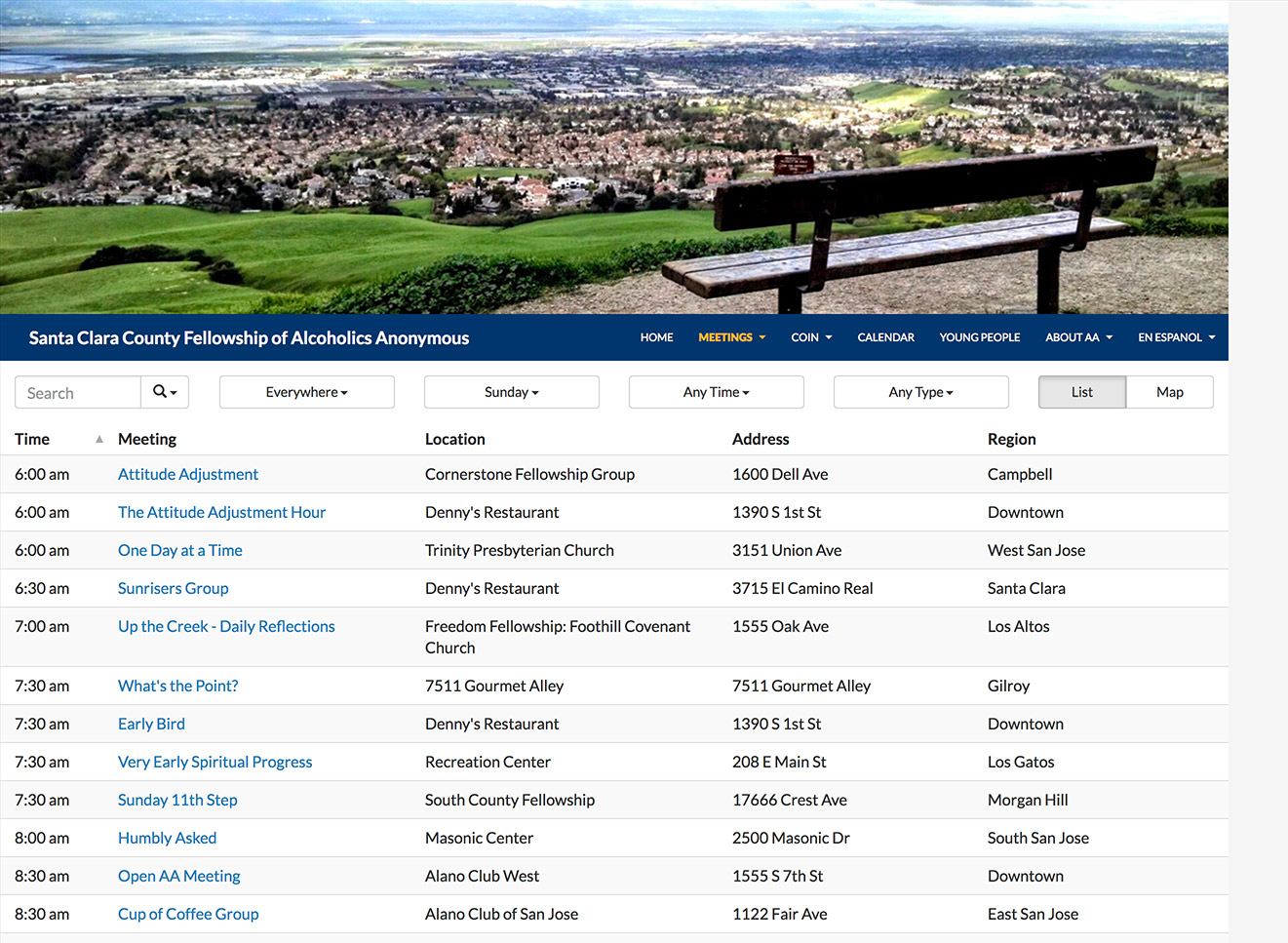
Meeting list page
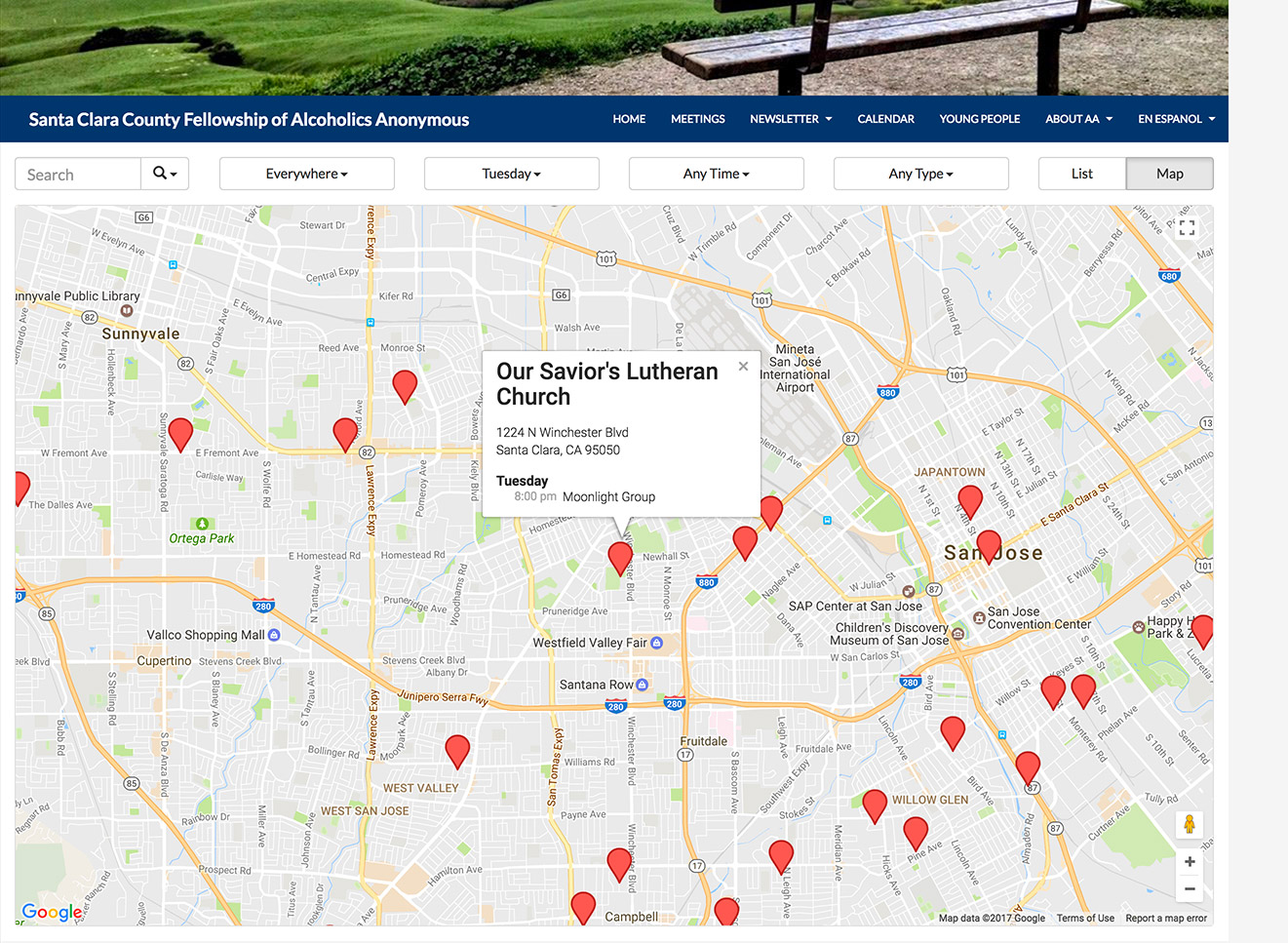
Meeting map
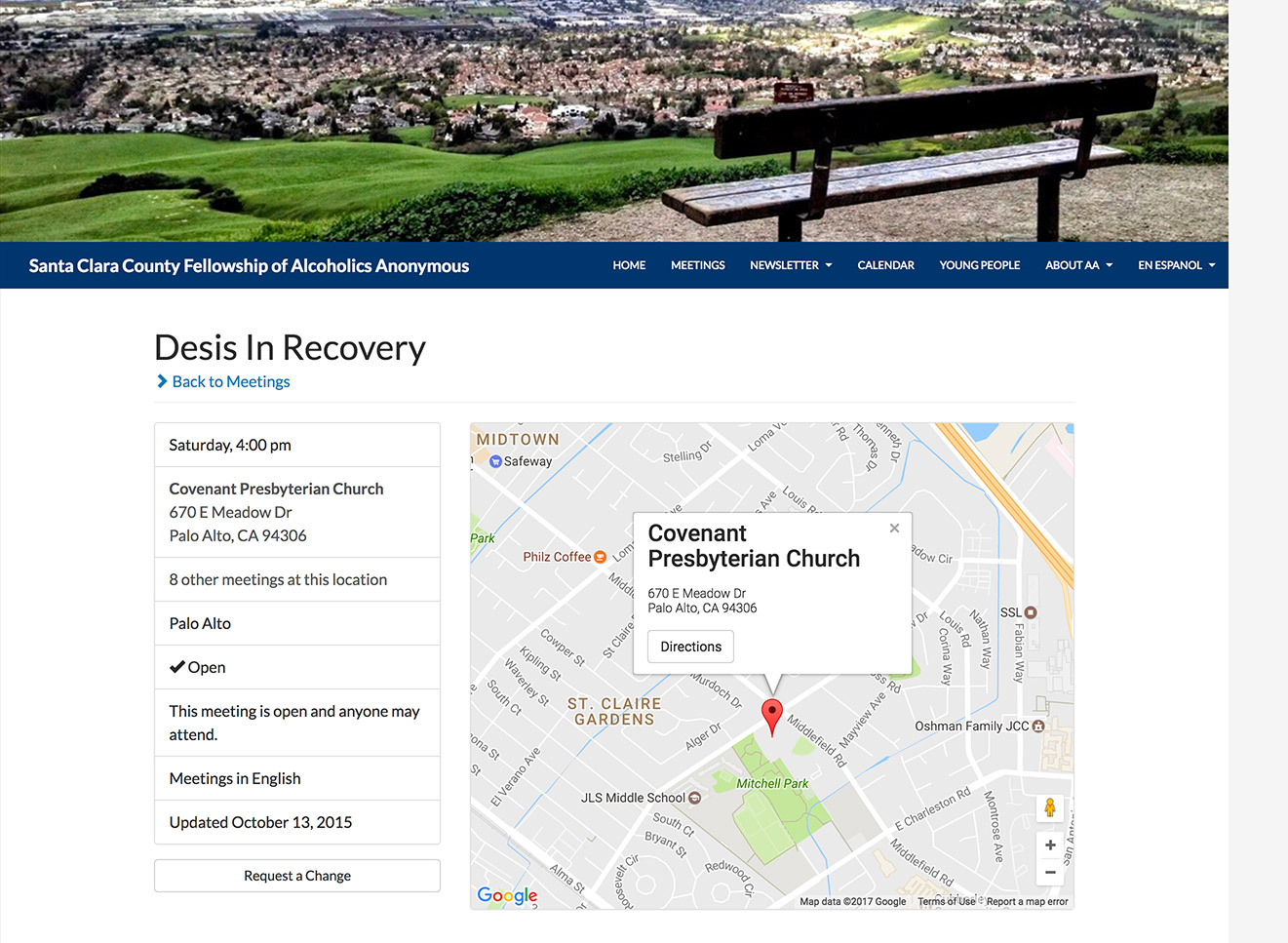
Meeting detail page
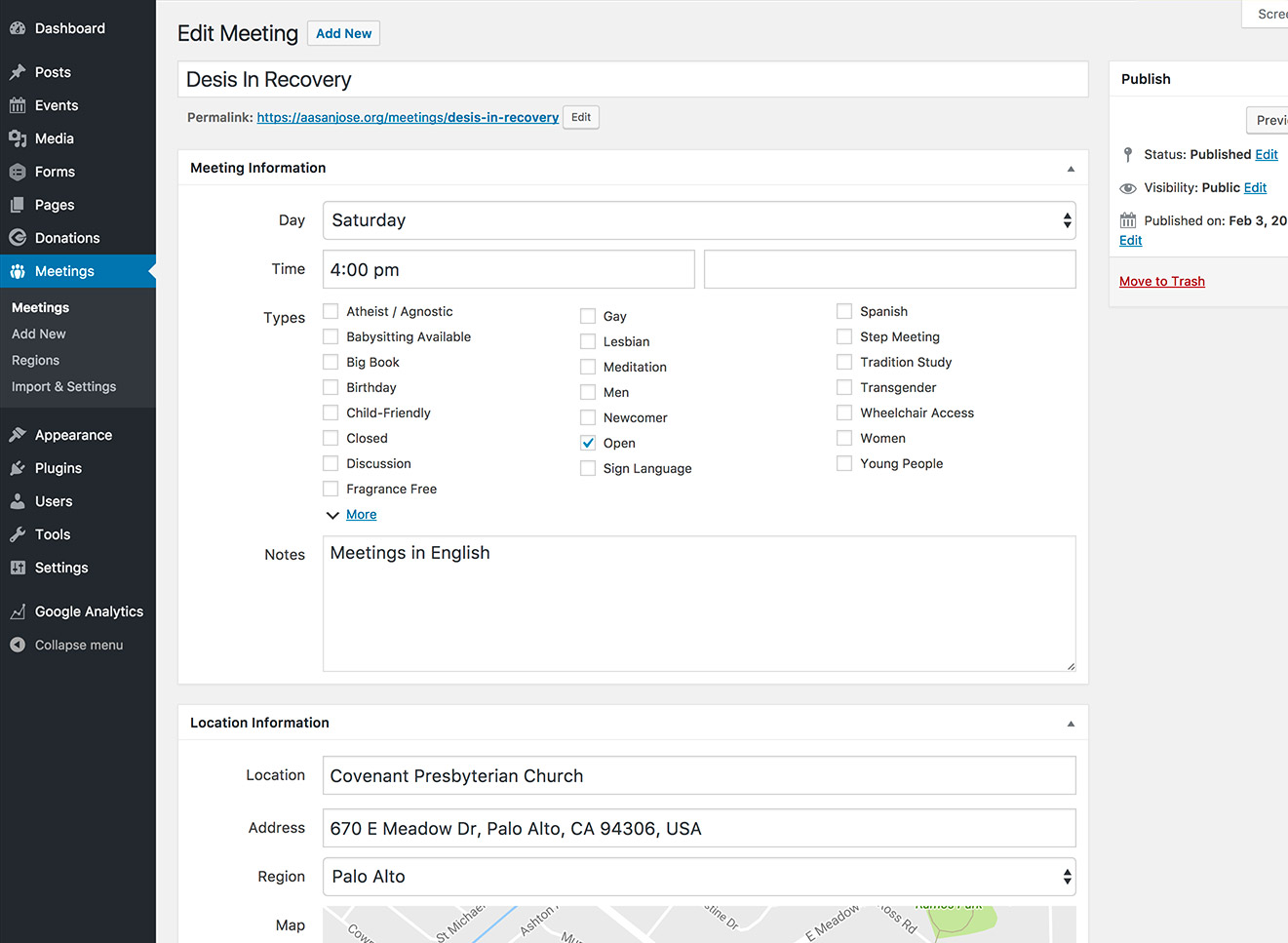
Edit meeting
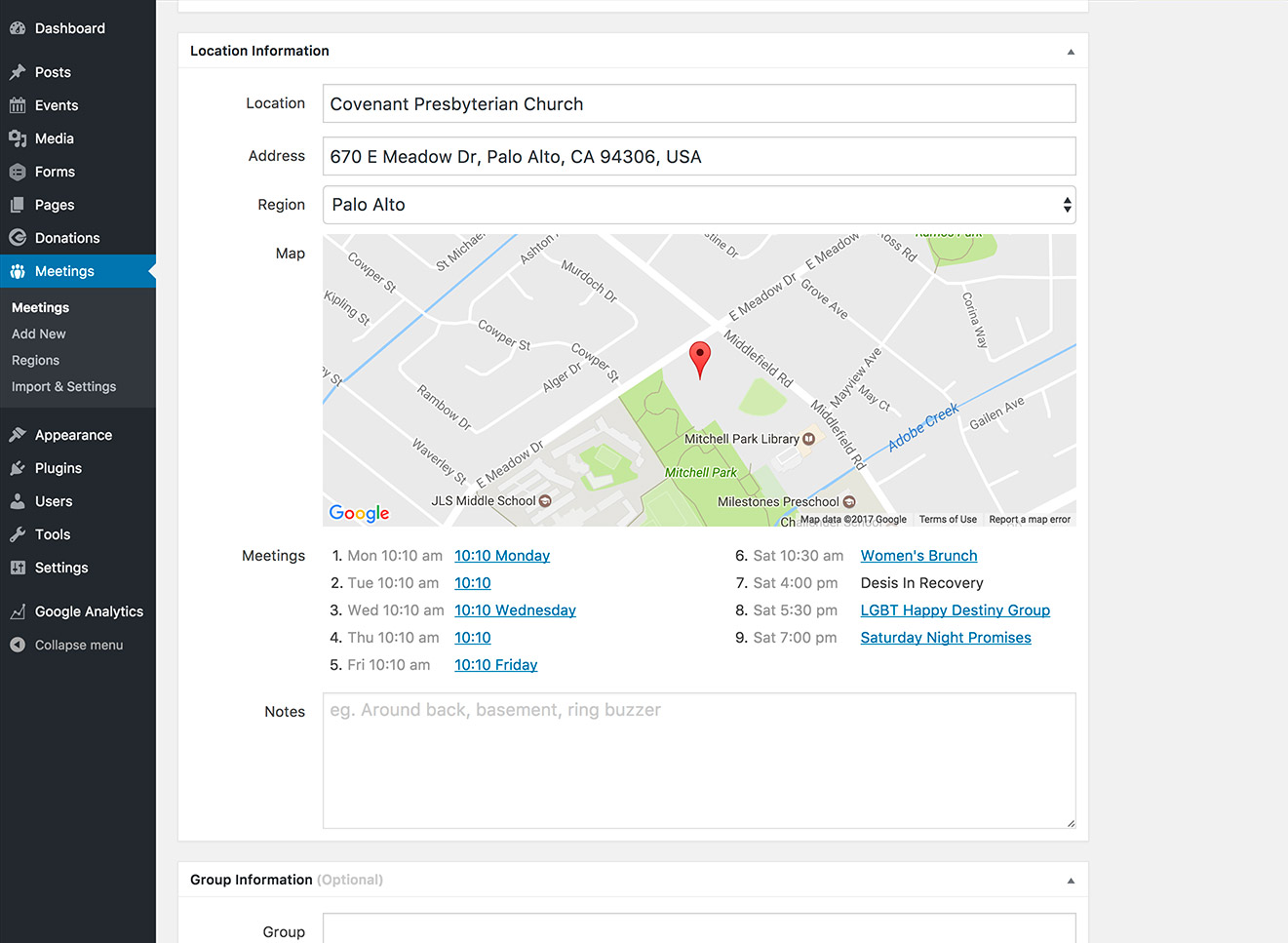
Edit location
FAQ
If it’s a broadly-applicable meeting type, please ask us in the discussions forum. We must maintain consistency for the mobile apps, so not all proposals are accepted.
If you have access to your theme’s functions.php, you may add additional meeting types or rename existing ones. Simply adapt the following example to your purposes:
if (function_exists('tsml_custom_types')) { tsml_custom_types(array( 'XYZ' => 'My Custom Type', )); } Please note a few things about custom types:
- Once you’ve added the type, you will see it under ‘More’ on the Meeting edit screen. It will show up in the dropdown once you use it on a meeting.
- Be careful with the codes (“XYZ” in the above example) as this gives you the ability to replace existing types.
- Note that custom meeting types are not imported into the Meeting Guide app.
- They are for members in recovery to find a meeting. If you can’t imagine an addict looking for a meeting this way, then we recommend not adding it to your site.
- Don’t add a type for the default, eg ‘Non-Smoking.’ If you do that, then you have to be vigilant about tagging every last meeting in order to make the data complete.
It depends on your Permalinks setup. The easiest way to find the link is to go to the Dashboard > Meetings > Import & Export page and look for it under “Where’s My Info?”
We get our geocoding positions from Google (this true even if your maps are by Mapbox). Google is correct an amazing amount of the time, but not always. If you need to add a custom location, add this to your theme’s functions.php.
Note you can add multiple entries to the array below.
if (function_exists('tsml_custom_addresses')) { tsml_custom_addresses(array( '5 Avenue Anatole France, 75007 Paris, France' => array( 'formatted_address' => '5 Avenue Anatole France, 75007 Paris, France', 'city' => 'Paris', 'latitude' => 48.858372, 'longitude' => 2.294481, 'approximate' => 'no', ), )); } Yes, you can add, update, or remove these descriptions. Adapt this example as needed and add it to your theme’s functions.php. Using an empty string '' will unset the type.
if (function_exists('tsml_custom_descriptions')) { tsml_custom_descriptions([ 'C' => 'Special closed type description', 'O' => '', //this type has been removed ]); } Change Detection augments our data import utility by periodically polling your data sources and generating email notifications to Change Notification Email recipients who you registered on the Settings page.
Change Detection can only be enabled when adding a data source to your list of Data Sources. Re-registering an existing data source is necessary to get Change Detection enabled. This includes:
* To be safe, always make a backup of your existing meeting list by using the link on the Import tab to export your Meeting List.
* If you are going to have change detection on multple data sources, you may choose to add the parent organization(s) to your list of Regions first (i.e. District 1, YourCity Intergroup, etc.).
* Remove the data source (click on the X next to its Last Refresh timestamp) We suggest first noting the json feed URL (hover over the feed name to view the URL) for use when adding it back.
* Set data source options: enter a name for your feed, set the feed URL, select the parent region from the Parent Region dropdown, and lastly choose the “Change Detection Enabled” option.
* Pressing the “Add Data Source” button will register a WordPress Cron Job (tsml_scan_data_source) for the newly added and enabled data source. By default, this cron job is scheduled to run “Once Daily” starting at midnight (12:00 AM).
The frequency and time that the cron job runs is optionally configurable with the [WP Crontrol[(https://wordpress.org/plugins/wp-crontrol/)] plugin.
When editing a data source record a warning is given that the record will be over-written when the data source is refreshed.
To avoid this warning and prevent a refresh from altering an edited record it’s necessary to follow a few simple steps to reimport the data source records:
- Make a backup of your existing meeting list by using the export link found on the Import tab of the Import & Export page.
- Open the exported file (meetings.csv) which you should find in your local Downloads folder.
- Delete the entire ‘Data Source’ column found near the far right and then Save the file (recommend using Save As to rename the file to something unique such as my-meetings.csv).
- Remove the imported data source (click on the X next to its Last Refresh timestamp).
- Import the saved file using the Import CSV feature on the Import & Export page.
Your meeting list records will now no longer display a warning message when being edited, and will not be overwritten by a data source refresh operation!
Add this CSS to your theme:
div#tsml #meetings .controls ul.dropdown-menu div.expand { display: none; } div#tsml #meetings .controls ul.dropdown-menu ul.children { height: auto; } The easiest way is to link to that view straight from your navigation. Usually that looks like /meetings/?tsml-day=any, but it can vary depending on your settings.
If you’d prefer to keep the default address, you could add this code to your theme’s functions.php instead:
$tsml_defaults['day'] = null; Add this to your theme’s functions.php. The value should be an existing value, ie 1, 5, 10, 25 or 50.
$tsml_defaults['distance'] = 25; Add this to your theme’s functions.php.
$tsml_street_only = false; Add a URL to your theme’s functions.php.
$tsml_feedback_url = '/feedback'; You can add variables to the URL that can be picked up by a form plugin:
$tsml_feedback_url = '/feedback?slug={{slug}}&id={{id}}&name={{name}}&day={{day}}&time={{time}}&end_time={{end_time}}&types={{types}}¬es={{notes}}&conference_url={{conference_url}}&conference_url_notes={{conference_url_notes}}&conference_phone={{conference_phone}}&conference_phone_notes={{conference_phone_notes}}&location={{location}}&formatted_address={{formatted_address}}®ion={{region}}&location_notes={{location_notes}}&group={{group}}&group_notes={{group_notes}}&district={{district}}&website={{website}}&email={{email}}&phone={{phone}}&venmo={{venmo}}&square={{square}}&paypal={{paypal}}&data_source_name={{data_source_name}}'; Feel free to adjust as necessary. This can also be a new email URL, such as:
$tsml_feedback_url = "mailto:office@domain.com?subject={{slug}}"; Add this to your theme’s functions.php. Feel free to change the order or column names (eg ‘Region’) but keep the keys the same (eg ‘region’).
$tsml_columns = array( 'region' => 'Region', 'time' => 'Time', 'distance' => 'Distance', 'name' => 'Name', 'location_group' => 'Location / Group', 'address' => 'Address', 'types' => 'Types' ); Add this to your theme’s functions.php.
$tsml_columns = array( 'region' => 'Region', 'time' => 'Time', 'distance' => 'Distance', 'name' => 'Name', 'location' => 'Location', 'address' => 'Address', 'types' => 'Types' ); By default, the plugin sorts by day, then time, then location name. To set your own sort index, add this to your functions.php:
$tsml_sort_by = 'region'; //options are name, location, address, time, or region By default this plugin uses the Streets theme, v9. To change this, add this to your functions.php:
$tsml_mapbox_theme = '<theme URL>' Please note the version of the Mapbox script we use doesn’t support all the themes displayed on the Mapbox site. The themes which have been tested and are known to work are: mapbox://styles/mapbox/streets-v9, mapbox://styles/mapbox/outdoors-v9, mapbox://styles/mapbox/light-v9, mapbox://styles/mapbox/dark-v9, mapbox://styles/mapbox/satellite-v9, and mapbox://styles/mapbox/satellite-streets-v9.
If you are using the “Legacy UI” appearance, copy the files from the plugin’s templates directory into your theme’s root directory. If you’re using a theme from the Theme Directory, you may be better off creating a Child Theme. Now, you may override those pages. The archive-meetings.php file controls the meeting list page, single-meetings.php controls the meetings detail, and single-locations.php controls the location detail.
If you are using TSML UI, then adding local CSS is the best way to customize the appearance of the meeting finder.
Please note these pages will evolve over time. If you override, you will someday experience website errors after an update. If that happens, please update your theme’s copy of the plugin pages.
To see types in the meeting list, one way to do it is to add some CSS to your theme which will make a types column visible.
@media screen and (min-width: 768px) { div#tsml #meetings .types { display: table-cell !important; } } One drawback of this approach is that it shows all the meeting types, and you might not want all of them to be displayed over and over in the meeting list.
Another approach is to adjust which meeting types are “flagged” in the meeting names, by default for most programs this is /Men and /Women. To adjust this, find the meeting type code for each type you want to show and include it in your theme’s functions.php like this:
if (function_exists('tsml_custom_flags')) { tsml_custom_flags(array('M', 'W', 'O', 'C')); } The code above will add “Open” and “Closed” flags to the meeting name.
If you don’t mind some PHP programming, then yes! Create a function called tsml_import_reformat, and use it to
reformat your incoming data to the standard format
if (!function_exists('tsml_import_reformat')) { function tsml_import_reformat($meetings) { //your code goes here return $meetings; } } You can make use of the gettext filter to override the plugin’s translation strings. For example, if you wanted to replace ‘Region’ with ‘City,’ you could add the following to your functions.php file.
function theme_override_tsml_strings($translated_text, $text, $domain) { if ($domain == '12-step-meeting-list') { switch ($translated_text) { case 'Region': return 'City'; } } return $translated_text; } add_filter('gettext', 'theme_override_tsml_strings', 20, 3); Save it as a draft by editing the meeting’s Status.
Yes, you can use [tsml_meeting_count], [tsml_location_count], [tsml_group_count], and [tsml_region_count] to display human-formatted counts of your entities. For example, “Our area currently comprises [tsml_meeting_count] meetings.”
[tsml_next_meetings count="5"] displays a small table with the next several meetings in it. Use the `count` parameter to adjust how many are displayed. This will be unstyled if you're not using bootstrap in your theme. Use [tsml_types_list] and [tsml_regions_list] to output linked lists to your meeting finder.
Use [tsml_ui] to display the TSML UI meeting finder.
It is translated into Polish. If you would like to volunteer to help translate another language, we would be pleased to work with you.
That’s right, we don’t display that information by default for the sake of anonymity. To display it in your theme, go to Meetings > Settings and set the Meeting/Group Contacts dropdown to “public.”
Sure. Try adding this code to your theme’s functions.php:
add_action('pre_get_posts', 'tsml_front_page'); Also check out our One Page Meeting List theme.
Yes, but you will need to enter an approximate location. To do this simply enter the city and state or province of the general geographic location of the meeting into the address field.
Yes, try setting the $tsml_slug variable in your functions.php.
$tsml_slug = 'schedule'; You may set it to false to hide the public meeting finder altogether.
To apply these changes, you must go to Settings > Permalinks and click “Save Changes”
Yes, you can use the following filter to change the with_front configuration from true to false
add_filter( 'tsml_meeting_with_front', '__return_false'); Yes, add the following to your theme’s functions.php. Make sure you’ve enabled the Geocoding API in the Google Cloud Console.
$tsml_google_geocoding_key = 'my.api.key.goes.here'; To report a security issue, please use the Security Tab on our GitHub repo,
located under the repository name. If you cannot see the “Security” tab, select the … dropdown menu, and then click Security.
Please include as much information as possible, including steps to help our team recreate the issue.
Yes, you will need to know the key name of the field. Then include an array in your theme’s function.php file:
$tsml_custom_meeting_fields = [ 'my_custom_field_key' => 'My Custom Field', ]; Changelog
3.14.37
- Fix import errors more info
3.14.36
- Add Eating Disorders Anonymous more info
- Don’t include custom fields in JSON feed more info
- Update messaging about TSML UI supporting Mapbox only more info
- Fix error when multibyte functions are not installed more info
3.14.35
- Add timezone support more info
- Import custom fields from CSV file more info
- New tools to debug geocode cache more info
3.14.34
- Fix PHP vulnerability more info
- Fix PHP deprecation warning more info
- Improve coverage of translatable strings more info
3.14.33
3.14.32
- Fix bug preventing removal of online meeting URLs more info
3.14.31
- Improve page appearance with block themes more info
3.14.30
- Add SECURITY.md more info
- Fix page appearance with block themes more info
- Fix performance and appearance issues with search typeahead in Legacy appearance
- Fix minor issues on Region and District admin pages
- Fix minor issues when saving if debug mode is on and no region is selected
- Fix error when deleting plugin more info
3.14.29
- Add ability to export custom field types more info
- Limit CSV-downloading to editors and above
3.14.28
- Remove capability to make public CSV download links, since it looks like a security gap to researchers more info
3.14.27
- Fix 404 on TSML UI data URL when using Flywheel more info
- Prevent address and location fields from being translated by Google Translate more info
- Fix warning in upcoming meetings widget when location name is empty more info
- Fix permalink issues caused by deactivating, reactivating TSML more info
- Fix PHP code warning more info
- Include the name of the data source (if any) in the feedback URL
- Standardize whitespace format
- Fix NPM 401 issues
- Fix some potential edge-case security issues, and add notice about Patchstack more info
3.14.26
3.14.25
- Security update
3.14.24
- Show error in TSML UI when time zone is not valid more info
3.14.23
- Fix compatibility with Advanced Custom Fields more info
3.14.22
- Omit JSON regions array when empty more info
3.14.21
- Fix map javascript errors more info
3.14.20
- Add Survivors of Incest Anonymous more info
3.14.19
- Bump ‘tested with’ WordPress version
3.14.18
- Fix settings page assets bug with WP 6.3 more info
3.14.17
- Add Underearners Anonymous more info
- Add TSML UI shortcode to FAQ more info
- Export meeting author in CSV export more info
- Legacy UI: display meeting phone and email within button labels on detail page more info
- Legacy UI: expand keyword search to include region and district names more info
3.14.16
- Fix issue where selecting a region and then using the bulk “move to trash” action emptied the public meetings page temporarily more info
3.14.15
3.14.14
- Fix localization problems when site is in language other than English more info
- Add new meeting type for NA more info
3.14.13
[tsml_types_list]and[tsml_regions_list]shortcode links now work with TSML UI – more info- Editors can now use the Import & Export screen – more info
- Fix possible PHP notice on upcoming meetings widget – more info
- TSML now imports
12x12meetings properly – more info - Helper function to set custom meeting type descriptions – more info
- Remove legacy PDF code – more info
- Add open source license (GPL2)
3.14.12
- District is now selected when joining a meeting to an existing group – more info
- Fix for warning when refreshing a JSON feed – more info
- Provides info to help tech support / debugging – more info
- Add Dialpad as valid conference provider – more info
3.14.11
- Fix missing file warning
3.14.10
- Split Import & Settings into separate pages – more info
- Fix bugs when rendering Appointment meetings – more info
- Add more options for linking TSML UI to a feedback URL – more info
- Use TSML’s geocoding key except when specified in code
3.14.9
- Fix bug in 3.14.8 causing Regions and Districts to not be editable – more info
- Fix warning when type_descriptions are not set for program – more info
- When using TSML UI, remove Online and Location Temporarily Closed as default flags – more info
3.14.8
- Remove deprecated “BETA” geocoding option
- Don’t regenerate cache after every update
- Upgrade dev dependencies
- Overriding theme files no longer overrides TSML UI setting
- Add four new types for Al-Anon
- Remove automatic taxonomy pages
- Add ability for meetings page to be appended to site URL (rather than blog URL)
- Add Discord and GoTo.com as valid conference providers
3.14.7
- Fix directions button on mobile
- Fix TSML-UI data loading on GoDaddy CDN
3.14.6
- Add href link to meeting name for change detection
- Add flag settings to TSML UI configuration
- Fix build of directions URL for Google Maps
3.14.5
- Fix table layout bug when filtering
- Enable multiple levels of regions in TSML UI
3.14.4
- Set parent region on imported data source records
- Enable user-settable location-only column
3.14.3
- Add Jitsi conference provider
- Update Google Sheets importing to v4 API
- Expand change detection email report
- Add file timestamp to feed URL
3.14.2
- Rotating geocoding key to counter a spike in usage
3.14.1
- Make cache file unique
3.14
- Add Switch UI feature to facilitate switching between the two available user interface displays: Legacy UI and TSML UI
- Refactor Import & Settings page with tabs & cards to segregate and group features and settings
- Modify feed to follow the directive from setting “Meeting/Group Contacts Are” (Private/Public)
- Improve CSV export/import, includes contact and imported feed information
- Add TSML widget on WordPress dashboard
3.13
- Add change detection notification option for feeds
- Update url in TSML UI shortcode
- Fix district dropdown list
- Write approximate value when saving location
3.12.2
- Fix bug adding pages
- Fix database updates
3.12.1
- Add CSS class for past meetings
- Allow translations of attendance options
- Use a default meeting title if left blank
- Add CMA support
- Create feature_request.yml issue template
3.12
- Internal upgrades (please note: TSML, like WordPress, now requires PHP 5.6 or higher).
- Link to new PDF service.
3.11.3
- Address performance issues.
- Fix link to new Discussions (replaces Issues for public users).
3.11.2
- Fix widget filtering.
- Fix URL query parsing of
attendance_option. - Fix filtering options persistence.
- Revamp handling of online meeting links.
- Change open/closed definitions text.
- Fix display of online meeting location.
- Fix handling of
attendance_optionimport. - Update shortcode sytax for TSMLui.
3.11.1
- Fix PHP warnings.
3.11.0
- Add attendance option support, and improve online meeting support.
- Add support for custom MapBox themes.
- Improve TSMLui integration (short code, options).
- Fix bug preventing map from displaying.
3.10.0
- Add BETA feature for API Gateway to replace direct geocoding calls to Google.
- Add option for webmasters to configure their own Google geocoding API key.
- Fix bug related to display of 11th Step meeting type.
- Fix bug related to
tsml_addressesajax function. - Improve cache entries.
3.9.6
- Hot-fix to replace API key and correct additional geocode-related bug.
3.9.5
- Hot-fix to remove geocode error when adding new meeting.
3.9.4
- Fix bugs associated with approximate values/display of directions dialogs.
- Fix bug preventing draft locations from showing in suggestions.
- Replace Twitter Typeahead with jQuery Autocomplete to fix dependency on
deprecated jQuery code (should satisfy WordPress 5.6 compatibility).
3.9.3
- Fix subversion process.
3.9.2
- Fix readme.txt version number.
3.9.1
- Hot fix.
3.9.0
- Added tracking of approximate location. Markers/Directions are not
provided for approximate locations. - Fixed bug leading to incorrect sorting in meetings list.
- Fixed broken link for support (Need Help?).
- Fixed bug preventing use of meeting cache.
- FAQ moved to Wiki on GitHub.
3.8.0
- Added notes fields for online/phone meetings.
- Fixed bug preventing selection of multiple types.
- Fixed bug preventing customized meeting URL.
- Fixed bug involving meetings in draft status stripping location.
- Fixed classname issue with online meeting provider.
- Added program type Compulsive Eaters Anonymous-HOW.
- Fixed JQuery error with WordPress 5.5.
3.7.2
- Fixed bug involving end_time for meeting.
3.7.1
- Fixed bug introduced in previous version.
3.7.0
- Added additional support for 7th Tradition contributions.
- Added outdoor and seniors meeting types.
- Fixed bugs affecting contacts.
- Tweaked how contacts are displayed.
3.6.6
- Added TC and ONL flags for Al-Anon and other programs.
3.6.5
- Added hiding of conference phone numbers.
- Changed Temporary Closure to Location Temporary Closed.
- Changed online meeting to be accepted if dial-in only.
- Improved URL screening for csv/json imports.
- Improved front end styling for meetings.
3.6.4
- Updated CSV import/export and template to reflect added fields.
- Added abiility to bulk add/remove Temporary Closure type.
- Add two additional online conference types.
- Updated online phone button.
- Other bug fixes.
3.6.3
- Fixed issue with setting null for conference types.
- Fixed JSON feed not importing online conference info, and Venmo info.
- Added Skype conference type.
3.6.2
- Changes online meeting information from group to individual meeting (Issue #82).
- Adds front end styling for online meetings.
3.6.1
- Maintenance release
3.6.0
- Added feature to include online meeting information for temporarily closed meetings.
- Added “online meeting” type.
3.5.4
- Added temporary closure styling to widget.
3.5.3
- Changes to front end display supporting temporary closure tag.
3.5.2
- Adding “Temporary Closure” meeting type to all programs.
3.5.1
- Compatibility for PHP < 5.3
- “Need help” button on Import & Settings page
3.5.0
- Added option for upcoming meetings widget to display message if no further meetings exist for today.
- Added size to PDF generator.
- Fixed bug with restoring meetings from trash.
- Updated logo.
3.4.22
- Fixing bug in geocode caching (Ogden)
3.4.21
- Updating how PDF displays groups (hmbrecords)
- Updating documentation regarding JSON feeds (brianw)
- Updating bug and feature request processes
3.4.20
- Restoring PHP 5.3 compatibility
3.4.19
- Updating meeting types for Al-Anon
3.4.18
- Adding two new programs
3.4.17
- Importing Google Sheets (via Puget Sound)
- Fixing search with apostrophes (Houston)
- Further attempts to fix PDF errors (Ft Worth)
3.4.16
- Further attempts to fix PDF errors (Ft Worth)
3.4.15
- Fixing PDF error (Ft Worth)
3.4.14
- Geocode (Western MA, Traverse City)
3.4.13
- Hiding PHP notices for empty locations (Ft Worth)
3.4.12
- Fixing javascript bug when meeting has no types
3.4.11
- Fixing meeting types bug introduced in earlier commit
3.4.10
- Bugfixes relating to meeting type “flag” customization (Akron)
3.4.9
- PHP 5.2 compatibility (Hanover PA)
3.4.8
- Geocodes (Bolivia)
3.4.7
- Fixing night time filter
3.4.6
- Fixing error message in upcoming meetings widget (Inland Empire)
- Including slug in export CSV (Northern IL)
- Update cache when deleting meetings (Southern IL)
- Removing mention of non-AA programs from readme (San Diego)
- Fixing code formatting in FAQ
3.4.5
- Importing fix
3.4.4
- Syntax error on PHP < 5.4 (Palm Springs)
- FNV Import Location Field (Minnesota)
- District filtering working again
3.4.3
- Fixing filter for parent regions (PA Al Anon)
- Adding ‘delete all’ AJAX route
- Fixing JSON Import (San Francisco)
3.4.2
- Adding Non-Binary meeting type (Los Angeles)
- Geocodes (Western Mass)
3.4.1
- 3.4 was missing a file 🙁
3.4
- Major rewrite to make plugin more CPU-efficient (Ventura)
- Fixed bug where leaving a space at the end of a data source would cause an error
- Fixed bug where filters wouldn’t work after switching to Google Map view (SCA)
- Added post_status to params for tsml_get_meetings() (New England SLAA)
- Some new geocode overrides